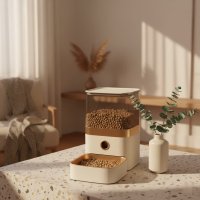
Welcome to MJ’s Food Club, where my 15 years in pet tech have shown me one thing clearly: smart feeding is a game-changer. If you’re looking into a Tuya pet feeder, you’re on the right track to transforming your pet’s mealtime experience and bringing unprecedented peace of mind to your busy life. Forget the guilt of missed feedings or the worry of over-indulgence; these devices, powered by the versatile Tuya ecosystem, bring convenience, precision, and a touch of futuristic care right to your home. We’re going to dive deep into everything you need to know, from picking the perfect model to mastering its features and troubleshooting any bumps along the way.
What is a Tuya Pet Feeder and How Does It Revolutionize Pet Care?
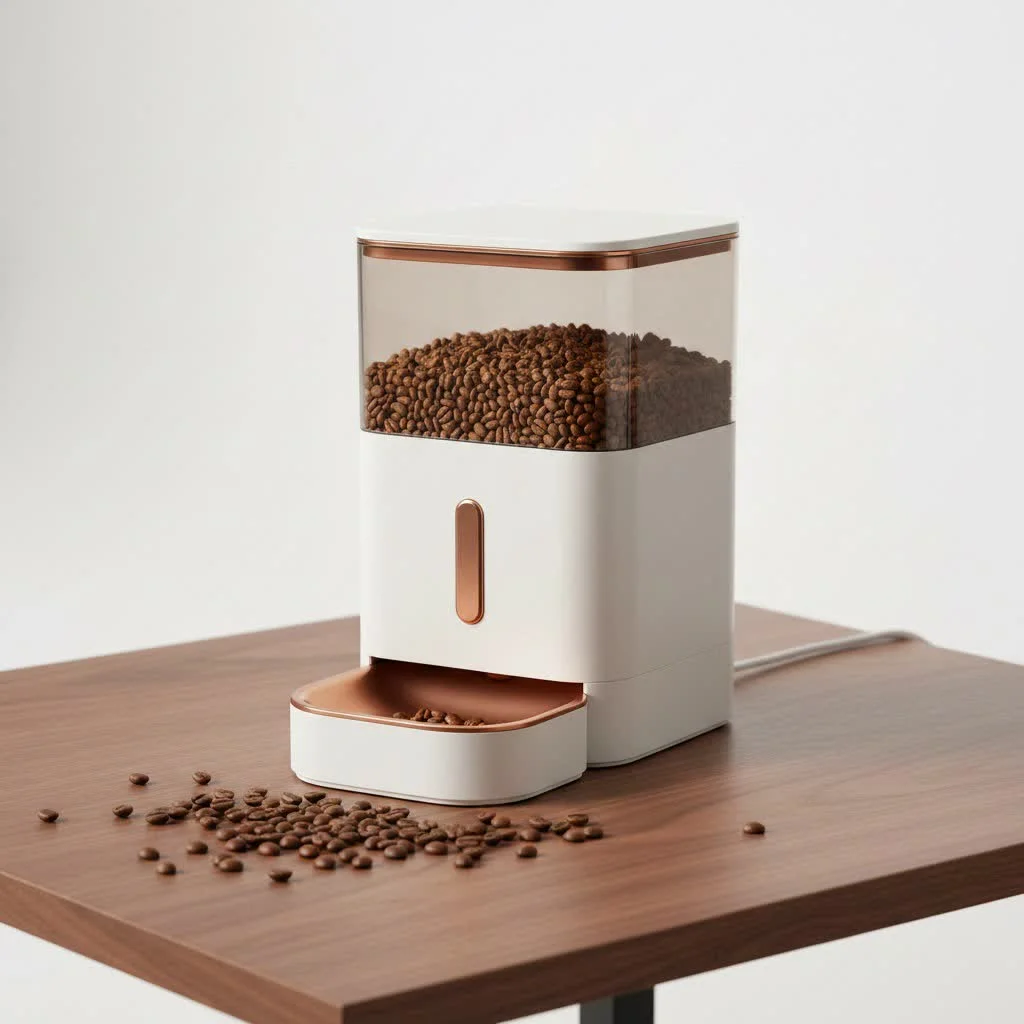
Tuya pet feeders are intelligent devices seamlessly integrated into the Tuya Smart ecosystem, designed to automate and optimize your pet’s feeding schedule. They revolutionize traditional pet care by offering consistent meal delivery, precise portion control, and often real-time monitoring, ensuring your furry friend maintains a healthy routine even when you’re away. Imagine controlling your pet’s meals from anywhere in the world, simply by tapping an app – that’s the convenience a Tuya pet feeder brings to your home. For best reviews roundups on this site.
The Brains Behind the Bowl: Understanding Tuya Technology
At its core, a Tuya pet feeder operates on the Tuya IoT (Internet of Things) platform, which is a global AIoT development platform. This means it connects to your home Wi-Fi network (specifically 2.4GHz for most models) and communicates with the Tuya Smart or Smart Life mobile application on your smartphone. The app acts as your central command center, allowing you to schedule feedings, adjust portions, and access various smart features. This integration into a broader smart home ecosystem means your pet feeder isn’t just a standalone device; it’s a part of a larger, connected home experience.
Key Features That Make a Difference
What sets a Tuya pet feeder apart are its smart capabilities, designed to cater to modern pet owners.
- Scheduled Feeding: This is the bread and butter of any automatic feeder. Tuya devices typically allow you to set up multiple feeding times throughout the day, often up to 12 meals, ensuring your pet sticks to a consistent routine.
- Precise Portion Control: No more guessing games! You can specify the exact number of “portions” (which equate to a certain gram weight depending on kibble density) per meal, helping manage your pet’s weight and dietary needs accurately.
- Voice Recording and Playback: Many Tuya feeders come with a built-in microphone and speaker, allowing you to record a personalized message that plays at feeding times. Hearing your voice can comfort your pet and encourage them to eat, especially if they’re shy.
- Integrated HD Camera: For many pet parents, this is a non-negotiable. Select Tuya pet feeder models include an HD camera, offering live video streaming directly to your phone. This means you can check in on your pet, watch them eat, and even monitor their general well-being throughout the day.
- Two-Way Audio: Beyond just recording, some camera-equipped feeders feature two-way audio. You can not only hear your pet but also speak to them through the feeder, offering comfort or gentle correction from afar.
- Manual Feed Option: Life happens, and sometimes you need to offer an extra snack or a quick meal. Tuya feeders allow manual dispensing via the app or a physical button on the device (often a triple press or double click), giving you ultimate flexibility.
- Feeding Records and Alarms: The app keeps a detailed log of dispensed meals, and can send alerts for low food levels, low battery, or even food jams, keeping you informed of your feeder’s status.
- Backup Battery System: A crucial feature for reliability! Most Tuya feeders offer a battery backup (usually AA batteries) to ensure your pet is fed even during a power outage, providing peace of mind.
Choosing the Perfect Tuya Pet Feeder for Your Furry Friend
Selecting the perfect Tuya pet feeder involves a thoughtful assessment of your pet’s unique characteristics, your lifestyle, and the specific smart features that will genuinely enhance your daily routine. Prioritize factors like hopper capacity, kibble compatibility, and diverse power options to ensure the feeder not only meets but exceeds both your and your pet’s individual requirements.
Assessing Your Pet’s Needs
|
Our Picks for the Best Pet Feeder in 2026
As an Amazon Associate I earn from qualifying purchases.
|
||
| Num | Product | Action |
|---|---|---|
| 1 | VOLUAS Automatic Cat Feeders - Timed Pet Feeder for Cats and Dogs with Dry Food Dispenser, Desiccant Bag, Programmable Portion Control, 4 Daily Meals, 10s Voice Recorder |

|
| 2 | PETLIBRO Automatic Cat Feeder with Camera, 1080P HD Video with Night Vision, 5G WiFi Pet Feeder with 2-Way Audio, Low Food & Blockage Sensor, Motion & Sound Alerts for Cat & Dog Single Tray |
|
| 3 | PETLIBRO Automatic Cat Feeder, 5G WiFi Automatic Dog Food Dispenser with Freshness Preservation, 5L Timed Pet Feeder with Low Food Sensor, Up to 10 Meals Per Day, Granary Black |
|
| 4 | Sure Petcare -SureFlap - SureFeed - Microchip Pet Feeder - Selective-Automatic Pet Feeder Makes Meal Times Stress-Free, Suitable for Both Wet and Dry Food - MPF001 |
|
| 5 | Amazon Basics Automatic Dog Cat Water Dispenser Gravity Feeder Set, Pack of 2, Small, 6-Pound Food Capacity, 1-Gallon, Gray |
|
| 6 | oneisall Automatic Cat Feeder for 2 Cats, 20 Cups/5L Automatic Cat Food Dispenser for Small Pets Indoor, Timed Cat Feeder for Dry Food |
|
| 7 | IMIPAW Automatic Cat Feeders, 3L Timed Cat Dry Food Dispenser with Desiccant Bags, Dual Power Supply, Programmable Portion Size, 6 Meals, 20 Portions Per Day, Auto Pet Feeder for Cats and Small Dogs |
|
| 8 | Automatic Cat Feeder, 4L Cat Food Dispenser with 10s Voice Recorder, Pet Feeder up to 8 Meals per Day, Timed Dog Feeder with Dry Food Sealed Ring (White, 4L-Basic) |
|
| 9 | PETLIBRO Automatic Cat Feeder – 3L Programmable Pet Food Dispenser with Airtight Storage, Timed Portion Control, Voice Meal Call & Dual Power Supply, Clog-Free Healthy Feeding for Cats & Small Dogs |
|
| 10 | Pet Food Maker, Automatic Home Kitchen Appliance for Preparing Fresh Pet Meals |
|
Before diving into features, consider your pet:
- Size and Appetite: Do you have a small cat, a medium-sized dog, or multiple pets? This will dictate the hopper capacity you need (e.g., 2.5L to 6L are common). A larger capacity means less frequent refills.
- Dietary Habits: Is your pet a fast eater or a grazer? Do they have specific portion requirements for weight management? Precise portion control is key here.
- Food Type: Tuya pet feeders are designed exclusively for dry kibble. They cannot handle wet food or unusually shaped, holed, or overly large kibble (typically over 10mm in diameter). Always check the manufacturer’s recommendations.
- Activity Level: If your pet is prone to knocking things over, look for a feeder with a stable base or one that can be placed in a corner.
Must-Have Features vs. Nice-to-Haves
- Reliable Scheduling & Portioning (Must-Have): This is the core function. Ensure the app is intuitive for setting schedules and that portion sizes are granular enough for your needs.
- Battery Backup (Must-Have): Power outages happen. A feeder with battery backup guarantees your pet won’t miss a meal.
- Ease of Cleaning (Must-Have): Look for models with detachable, washable components, especially the food bowl and dispenser mechanism, to maintain hygiene.
- Integrated Camera & Two-Way Audio (Nice-to-Have, but highly recommended): While not strictly essential for feeding, these features offer immense value for monitoring, interacting, and addressing separation anxiety. As Dr. Amelia Hayes, a renowned veterinary behaviorist, often says, “Visual and auditory connections, even remotely, can significantly reduce stress for both pets and their owners when apart.”
- Voice Recording (Nice-to-Have): A comforting voice message can make mealtime more pleasant for your pet.
- Transparent Food Hopper (Nice-to-Have): Some feeders have a partially transparent hopper, allowing you to visually estimate the remaining food level, which is a simple but very useful feature.
Step-by-Step Setup: Getting Your Tuya Pet Feeder Online
Setting up your Tuya pet feeder is a straightforward process, but a few key steps and considerations will ensure a smooth experience. You’ll typically begin by physically preparing the feeder and then connecting it to your home’s Wi-Fi network and the dedicated mobile application.
Initial Hardware Installation
- Unpack and Assemble: Carefully remove all components from the packaging. Most feeders have a main unit, a food hopper, a lid, and a detachable food bowl. Assemble them according to the included instructions.
- Power Up: Plug the provided USB-C power cable into the feeder and an appropriate power adapter. It’s best to use the original adapter if one is included.
- Install Backup Batteries (Optional, but Recommended): Locate the battery compartment (often on the bottom) and insert the specified AA batteries. This ensures your feeder continues to operate even if the main power is interrupted.
- Strategic Placement: Place the feeder on a level, stable surface, ideally in a corner or against a wall to prevent it from being knocked over by enthusiastic pets. Ensure the power cord is tucked away or covered to prevent your pet from chewing on it, which can cause both damage to the feeder and a safety hazard.
- Initial Cleaning (Optional): Before adding food, you might want to give the removable parts a quick wash and dry to ensure they’re clean.
Connecting to the Tuya Smart App
The Tuya ecosystem uses the “Tuya Smart” or “Smart Life” app, both of which are readily available on iOS and Android app stores.
- Download and Register: Download either the “Tuya Smart” or “Smart Life” app. Open it, agree to the privacy policy, and register for a new account using your email or phone number. Be sure to select the correct country or region.
- Prepare for Pairing: Open the feeder’s lid (if applicable) and ensure the feeder is powered on. Look for the Wi-Fi indicator light; it should be flashing rapidly (often red), indicating it’s ready for pairing. If it’s not flashing, you might need to press and hold a “Wi-Fi Reset” or “Pairing” button for a few seconds until it starts.
- Crucial Wi-Fi Note (2.4GHz Only!): This is vital. Tuya pet feeders only connect to a 2.4GHz Wi-Fi network. If your router broadcasts both 2.4GHz and 5GHz bands with the same name, you might need to temporarily disable the 5GHz band during setup or ensure your phone is connected to the 2.4GHz network.
- Add Device: In the app, tap “Add Device” or the “+” icon in the top right corner. The app might automatically detect the feeder, or you can manually select “Pet Feeder” from the list of devices under “Small Home Appliances” or “Pet Care.”
- Choose Pairing Mode:
- QR Code Mode (Most Common): The app will display a QR code. Hold your phone’s screen in front of the feeder’s camera (if it has one) until you hear a confirmation sound.
- AP Mode (Alternative): If QR code mode fails, switch to AP mode (often an option in the top right of the app’s pairing screen). Follow the in-app instructions to connect your phone directly to the feeder’s temporary Wi-Fi hotspot and then back to your home network.
- Enter Wi-Fi Password: Input your 2.4GHz Wi-Fi network password accurately.
- Connect and Complete: The app will attempt to connect to the feeder. Once successful, the Wi-Fi indicator light on the feeder will typically turn solid green, and the app will confirm the successful addition of the device. You can then rename your feeder for easy identification.
Mastering Your Tuya Pet Feeder: Scheduling, Monitoring, and More
Once your Tuya pet feeder is connected, the real fun begins. Mastering its features means taking full advantage of the smart technology to provide optimal care and convenience. This involves not only setting up routine schedules but also leveraging advanced monitoring and interactive capabilities.
Crafting the Perfect Feeding Schedule
The Tuya Smart app provides a robust scheduling interface, allowing you to tailor your pet’s meals precisely.
- Access Feeding Schedule: From your feeder’s main screen in the app, look for “Feeding Schedule” or “Timed Feeding.”
- Add Schedule: Tap to add a new schedule. You’ll typically set:
- Feeding Time: The exact time you want the meal to be dispensed.
- Repeat Rules: Choose which days of the week this schedule applies (e.g., everyday, weekdays, weekends, or specific days).
- Feed Portions: Select the number of portions per meal. Remember, “portions” refer to specific amounts dispensed by the feeder, and you’ll need to observe your feeder to determine the actual gram weight for your kibble type.
- Review and Save: Once all parameters are set, save the schedule. You can create multiple schedules for different times throughout the day, ensuring your pet gets smaller, more frequent meals if needed.
- Monitor Records: The app often features a “Feeding Record” section, allowing you to review past dispensations and confirm that your schedule is running as planned.
Leveraging Smart Features: Camera, Voice, and Manual Control
- Real-time Monitoring (Camera Models): If your Tuya pet feeder has a camera, you’ll see a live video feed on its main screen in the app. Use this to check in on your pet, ensure they’re eating, or just enjoy watching their antics. Many cameras also offer night vision.
- Two-Way Audio Interaction: Tap the “Talk” or microphone icon in the app’s camera interface to speak to your pet. They’ll hear your voice through the feeder’s speaker. This is great for offering reassurance or even calling them for dinner if they’re out of sight. You can also listen in on their sounds.
- Personalized Voice Prompts: Access the “Voice Recording” feature within the app to record a short message (e.g., “Dinner time, Fido!”) that will play automatically before each scheduled meal.
- Remote Manual Feeding: Need to give an extra treat or an unscheduled meal? Simply tap the “Feed” or “Manual Feed” button in the app. You can usually select the number of portions for this manual dispense. This is incredibly handy if you’re delayed coming home or want to reward good behavior.
- Alarm Management: Enable push notifications in your phone’s settings for the Tuya Smart app to receive real-time alerts for low food, low battery, or potential food jams. This proactive approach helps prevent any feeding interruptions.
Troubleshooting Common Tuya Pet Feeder Issues Like a Pro
Even the most reliable smart devices can encounter hiccups. Common Tuya pet feeder issues often include frustrating Wi-Fi connectivity problems, unexpected food dispensing errors, or even inaccuracies with feeding times. Fortunately, most of these can be resolved with a few expert troubleshooting steps, ranging from simply checking network stability to ensuring proper feeder assembly.
When Connectivity Fails: Wi-Fi Woes
The most frequent issue is related to Wi-Fi connectivity.
- Incorrect Password: Double-check that you’ve entered the Wi-Fi password correctly in the app.
- 2.4GHz Only: Confirm your home network is indeed 2.4GHz. Tuya feeders do not support 5GHz Wi-Fi. If you have a dual-band router with a single SSID, you might need to temporarily separate the bands or ensure your phone connects to the 2.4GHz network during setup.
- Distance from Router: Move the feeder closer to your Wi-Fi router to rule out signal strength issues. Obstacles like thick walls can significantly degrade Wi-Fi signals.
- Network Congestion: If you have many devices on your 2.4GHz network, it might be congested. Try restarting your router.
- Feeder’s Wi-Fi Indicator: Pay attention to the LED status:
- Rapidly Flashing RED: Feeder is in QR code mode, ready for network configuration.
- Slowly Flashing RED: Feeder is in AP mode, ready for network configuration.
- Always on RED: Feeder is configured but failing to connect to Wi-Fi. Check password, distance, and 2.4GHz band.
- Always on GREEN: Connected and working! (Can sometimes be turned off in settings).
- Reset the Feeder: If all else fails, reset the feeder to factory defaults. This usually involves pressing and holding the Wi-Fi settings button for about 5 seconds until you hear a prompt voice or see the indicator light change. Then, re-add it to the app.
Food Not Dispensing: Jams and Mechanical Mishaps
If your pet feeder isn’t delivering meals, check these common culprits:
- Food Jams: This is very common. Ensure the kibble size is within the feeder’s specifications (usually <10mm diameter). Food that’s too large or has unusual shapes can get stuck.
- Improper Turntable Installation: The internal dispensing mechanism (often a turntable or impeller) must be correctly installed. If it’s loose or misaligned, it won’t rotate properly.
- Motor Malfunction: To check the motor, remove all food, take out the turntable (if removable), and manually press the feed button a few times. If the motor doesn’t turn, contact support.
- Low Food/Empty Hopper: An obvious but often overlooked issue! Ensure there’s enough food in the hopper. The app usually alerts you to low food levels.
- Battery-Only Power: If the feeder is running solely on backup batteries, it might lose its Wi-Fi connection to save power, meaning scheduled feedings from the app won’t sync, and manual feeding via the app will be unavailable. Always rely on mains power when possible.
Time Zone Troubles and Scheduling Snafus
- Incorrect Time Zone: If feedings are happening at the wrong time, check the time zone setting for your feeder within the Tuya Smart app’s “Advanced Settings” or device settings. Ensure it matches your local time.
- App Sync Issues: After making changes to the schedule, ensure you “Save” them in the app. Sometimes, a quick app refresh or relaunch can help sync changes to the feeder.
- Feeder Reset: If a reset occurs, previous schedules might be lost. You’ll need to re-enter them.
Other Glitches and How to Solve Them
- “Food Blocking Tray” False Alarm: Some feeders send an alert if food remains in the tray for a certain period (e.g., 10 minutes). If your pet eats after this threshold, you might still receive the message. This isn’t necessarily a malfunction, but a notification that food was present for longer than expected.
- Manual Button Not Working: If pressing the physical feed button multiple times doesn’t dispense food, check if the button itself is physically stuck or not bouncing back. Ensure the feeder is powered on and connected.
- App Glitches: Occasionally, the app itself might have a temporary bug. Try force-quitting and restarting the Tuya Smart or Smart Life app.
Essential Maintenance for Your Tuya Pet Feeder’s Longevity
Just like any appliance, your Tuya pet feeder requires regular care to ensure it functions flawlessly and safely for years to come. Essential maintenance involves consistent cleaning, using the right type of food, and ensuring the device’s physical environment is secure and suitable.
Cleaning and Hygiene Best Practices
Regular cleaning is crucial to prevent bacteria buildup, odors, and food blockages, ensuring your pet always gets fresh, uncontaminated meals.
- Unplug and Remove Batteries: Always disconnect the feeder from power and remove backup batteries before cleaning.
- Disassemble Removable Parts: Detach the food hopper, lid, and food bowl. Many models allow easy removal of these components.
- Wash with Mild Soap: Wash the detachable hopper, lid, and food bowl with warm water and a mild, pet-safe dish soap. Rinse thoroughly to remove all soap residue.
- Dry Completely: This is paramount! Ensure all parts are completely dry before reassembling and adding food. Any moisture can lead to mold or spoilage of kibble. Air-drying or using a clean towel works best.
- Wipe Down Main Unit: Use a slightly damp cloth to wipe down the exterior of the main feeder unit. Never submerge the main unit in water as it contains electronics.
- Check Dispensing Mechanism: Periodically inspect the internal dispensing mechanism for any accumulated food dust or debris. Use a small brush or dry cloth to clean it. If the turntable is removable, clean that as well.
Food Compatibility and Storage Tips
- Dry Kibble ONLY: Reiterating this point because it’s vital for the feeder’s functionality and your pet’s health. Wet food will clog the mechanism and spoil rapidly.
- Appropriate Kibble Size: Stick to the manufacturer’s recommended kibble size (e.g., typically under 10mm in diameter) to prevent jams.
- Store Kibble Properly: While the feeder’s hopper is a storage space, it’s still best to keep your main kibble supply in an airtight container to maintain freshness and prevent pests. Refill the feeder as needed.
- Monitor Food Expiry: Always be mindful of the expiry date of your pet’s food. Even in a feeder, old food can lose nutritional value and freshness.
Safe Usage Environment
- Indoor Use Only: Tuya pet feeders are designed for indoor environments. Exposure to elements like rain, extreme temperatures, or direct, prolonged sunlight (e.g., on a balcony) can damage the device.
- Secure Power Cord: Always ensure the power cord is well-hidden or secured to prevent pets from chewing on it, which poses a risk of electric shock and feeder damage.
- Do Not Disassemble (Main Unit): Unless you are a qualified technician, do not attempt to disassemble or modify the main electronic unit of the feeder. This can void warranties and create safety hazards.
Frequently Asked Questions About Tuya Pet Feeders
Is the Tuya pet feeder compatible with other smart home devices?
Yes, Tuya pet feeders, being part of the Tuya ecosystem, can often integrate with other Tuya-compatible smart home devices and scenes through the Tuya Smart or Smart Life app, allowing for broader automation.
How do I clean my Tuya pet feeder?
To clean your Tuya pet feeder, unplug it and remove batteries, then disassemble removable parts like the food hopper and bowl. Wash these with mild soap and water, dry thoroughly, and wipe the main unit with a damp cloth, ensuring no water enters the electronic components.
What if my Tuya pet feeder loses internet connection?
Most Tuya pet feeders with a battery backup will continue to dispense food according to the last synced schedule, even if the internet connection is lost. However, remote control via the app and any new schedule changes will be unavailable until the connection is restored.
Can I feed my pet manually with a Tuya feeder?
Absolutely! Tuya pet feeders typically offer both in-app manual feeding options and a physical button on the device (often requiring multiple presses) to dispense food on demand.
What types of food can I use in a Tuya pet feeder?
Tuya pet feeders are designed exclusively for dry kibble. It’s crucial to use food within the specified size range (usually under 10mm in diameter) to prevent jams and ensure proper dispensing. Wet food is not compatible.
How many grams are in one “portion” of pet food?
The exact gram weight of one “portion” varies significantly depending on the density and size of your specific kibble. You’ll need to conduct a simple test by dispensing a single portion and weighing it to determine the precise amount for your pet’s food.
Can I record my voice for feeding alerts?
Yes, many Tuya pet feeders allow you to record a short personalized voice message through the app, which will play automatically at each scheduled feeding time to attract your pet.
Elevate Your Pet’s Mealtime with a Tuya Pet Feeder
The journey into smart pet care with a Tuya pet feeder is an investment in convenience, consistency, and peace of mind. By providing precise, automated meals, these devices ensure your beloved companion receives optimal nutrition whether you’re home or away, while features like cameras and two-way audio bridge the distance between you and your furry friend. From effortless setup to expert troubleshooting and vital maintenance, empowering yourself with this knowledge ensures you can maximize the benefits of your Tuya pet feeder. Make the smart choice today, and join the MJ’s Food Club community in giving your pet the best care possible.
Smart home that does not lock you in
Free PDF — protocol compatibility matrix for 30 hubs and devices.